
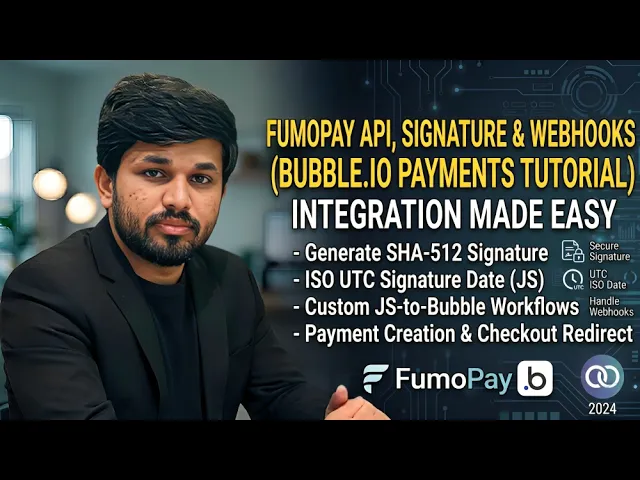
Accepting payments inside a Bubble.io app is one of the most important milestones for any SaaS product, marketplace, or e-commerce tool. And if you are working with FumoPay as your payment gateway, getting the signature generation and webhook handling right is the key to making the entire integration work reliably.
In this tutorial, we walk you through the complete FumoPay integration inside Bubble.io step by step. You will learn how to generate the required SHA 512 signature using custom JavaScript, create a payment using the FumoPay API, and handle the webhook response to confirm successful transactions inside your Bubble app.
For the full API configuration and setup documentation, refer to this resource: https://docs.google.com/document/d/1av5piBEMCQeQko-wL_C9hDuDqRRxNw65pFMHc7o6vH8/edit?usp=sharing
What Is FumoPay?
FumoPay is a payment gateway that allows businesses to accept online payments through a hosted checkout experience. Integrating it into a Bubble.io app requires generating a secure SHA 512 Base64 encoded signature, making a POST request to the FumoPay transaction endpoint, and handling the webhook callback that confirms whether a payment was successful.
While this might sound complex at first, this tutorial breaks it down into clear, manageable steps that any Bubble developer can follow.
Who Is This Tutorial For?
This tutorial is ideal for:
Bubble.io developers building SaaS applications that require payment functionality Teams building marketplaces or multi-vendor platforms on Bubble Developers creating custom checkout flows inside Bubble apps Anyone looking to integrate FumoPay into a no-code application
A basic understanding of Bubble.io workflows and the API Connector is helpful but not required. We explain every part of the process clearly.
Tools Used in This Tutorial
Bubble.io Toolbox Plugin (for running custom JavaScript inside Bubble) FumoPay API Webhooks JavaScript (SHA 512 signature generation)
Understanding FumoPay Signature Requirements
Before writing any code or setting up any API calls, it is important to understand what FumoPay requires for authentication.
FumoPay uses a SHA 512 Base64 encoded signature to verify that each payment request is legitimate and has not been tampered with. This signature must be generated by concatenating specific fields in a strict and exact order.
The required concatenation format is:
currency + description + profile key + external reference + signature date + secret key
Any change in the order of these fields, or any formatting error, will cause the request to fail. The signature date must also be in UTC ISO format.
Step 1: Generating the FumoPay Signature Using JavaScript in Bubble.io
Because Bubble.io does not natively support SHA 512 hashing, we use the Toolbox plugin to run custom JavaScript inside a Bubble workflow.
Install the Toolbox plugin from the Bubble plugin marketplace if you have not already done so. This plugin gives you a “Run JavaScript” action inside your workflows and a “JavaScript to Bubble” element for passing values back into Bubble.
Inside your workflow, add a “Run JavaScript” action. The JavaScript logic needs to:
Generate a UTC timestamp in ISO format for the signature date Concatenate the required fields in the exact order specified by FumoPay Hash the concatenated string using SHA 512 Convert the hash output to Base64 encoding Send the resulting signature and signature date back to Bubble using JavaScript to Bubble functions
Make sure your secret key is handled securely and is never exposed in front-end code in a production environment. For production apps, this step should be moved to a backend workflow.
Step 2: Sending Signature Values Back into Bubble
Once the JavaScript generates the signature and signature date, these values are passed back into Bubble using the JavaScript to Bubble element from the Toolbox plugin.
Place a JavaScript to Bubble element on your page and define two return values: one for the signature and one for the signature date. Your JavaScript code will call these elements to deliver the values back into your Bubble workflow.
Once received in Bubble, these values can be stored in custom states or passed directly into the next step of your workflow.
Step 3: Creating the Payment Using the FumoPay API
With the signature and signature date ready, you can now create the payment by sending a POST request to the FumoPay transaction endpoint.
Set up this API call inside the Bubble API Connector. The request body must include:
Profile key Currency Description External reference Amount Redirect URL Signature Signature date
The external reference is your internal order ID or transaction reference that you will use later to match the webhook response back to the correct order in your database.
When the API call is successful, FumoPay returns a checkout URL. Your Bubble workflow then redirects the user to this hosted checkout page where they complete the payment.
Step 4: Handling the FumoPay Webhook Response
After the user completes or fails a payment on the FumoPay checkout page, FumoPay sends a webhook POST request to an endpoint you define. This webhook contains the transaction result and is how you confirm whether a payment was successful inside your Bubble app.
To receive webhooks in Bubble, set up an API workflow endpoint in your Bubble app. This endpoint needs to be public and accessible from the internet. You can find your API workflow URL inside Bubble under Settings and then API.
The webhook payload from FumoPay includes:
Transaction ID External reference Payment result Status
Inside your Bubble API workflow, use the external reference value to look up the original order in your database. If the result text is “paid,” update the transaction record in your database to mark it as successful and trigger any follow-up actions such as sending a confirmation email or activating a subscription.
Important Tips for Production Environments
Always use UTC time format for the signature date. Any deviation will cause the signature validation to fail.
Never change the order of the fields used in the signature concatenation. FumoPay validates the signature based on a strict field order.
Keep your secret key secure. In a production environment, move the signature generation logic to a backend workflow so the secret key is never exposed in front-end JavaScript.
Make sure your webhook endpoint is public and accessible. FumoPay cannot deliver webhook events to a URL that requires authentication or is behind a firewall.
Test your integration thoroughly in the FumoPay development environment before going live with real transactions.
Watch the Full Video Tutorial
Every step covered in this guide is demonstrated in full detail in our YouTube tutorial:
Bubble.io Payments Tutorial: FumoPay API, Signature and Webhooks Explained
Watch it here: https://youtu.be/EZqY5Mw3uPk