
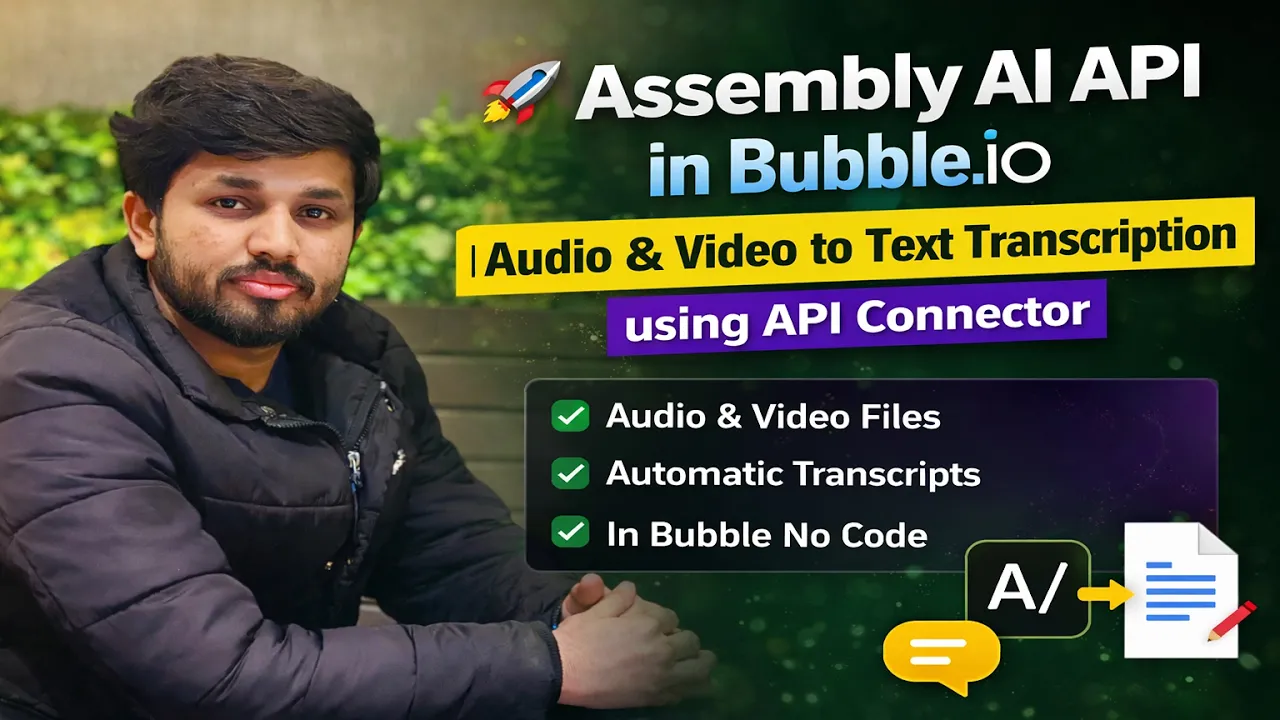
By Devcipator | No-Code and Low-Code Development Agency
Transcription technology has become one of the most in-demand features in modern applications. From meeting summarizers and podcast tools to voice-to-text apps and video caption generators, the ability to convert audio and video into accurate text is now a core part of many digital products.
The good news is that you do not need to be a developer to build this kind of feature. With Assembly AI and Bubble.io, you can create a fully automated transcription workflow inside your app without writing a single line of code.
In this tutorial, we walk you through the complete integration of the Assembly AI API into Bubble.io using the API Connector, step by step, from scratch.
What Is Assembly AI?
Assembly AI is one of the most accurate and developer-friendly speech-to-text APIs available today. It supports a wide range of audio and video formats and offers features like automatic punctuation, speaker detection, sentiment analysis, and chapter generation on top of standard transcription.
By connecting Assembly AI to your Bubble.io app, you can give your users the ability to upload any audio or video file and receive a clean, accurate text transcript automatically.
What You Will Build
By the end of this tutorial, you will have a working Bubble.io app that can:
Accept audio or video file uploads from users Send those files to the Assembly AI API automatically Retrieve the completed transcript once processing is done Display the transcript text dynamically inside your app
This is the core workflow behind some of the most popular AI-powered productivity tools being built today.
Who Is This Tutorial For?
This tutorial is perfect for:
No-code builders who want to add AI-powered transcription to their apps Bubble.io developers looking to integrate third-party AI APIs Entrepreneurs building transcription tools, meeting summarizers, or voice-to-text products Anyone who wants to explore what is possible with no-code and AI combined
No prior API experience is needed. We cover everything from getting your Assembly AI API key to building the full workflow inside Bubble.
Tools Used in This Tutorial
Assembly AI API Bubble.io API Connector Bubble.io File Uploader element
Step 1: Getting Your Assembly AI API Key
Go to assemblyai.com and create a free account. Once you are inside the dashboard, navigate to the API Keys section and copy your API key. You will need this to authenticate your requests from Bubble.io.
Assembly AI offers a free tier that includes a generous number of transcription hours, which is more than enough for development and testing purposes.
Step 2: Setting Up the API Connector in Bubble.io
Open your Bubble.io app and go to the Plugins tab. Search for “API Connector” and install it if you have not already done so.
Once installed, open the API Connector and click “Add another API.” Name it “Assembly AI” so it is easy to identify.
You will be setting up two separate API calls inside this connector:
One to upload your audio or video file and initiate the transcription One to check the transcription status and retrieve the completed transcript
Set the authentication type to “Private key in header” and add your Assembly AI API key with the header name “authorization.”
Step 3: Uploading Audio and Video Files in Bubble
Add a File Uploader element to your Bubble page. This allows users to select and upload an audio or video file directly from their device.
When a file is uploaded, your workflow will take the file URL and pass it as the input to your first Assembly AI API call. This initiates the transcription process on Assembly AI’s servers.
The API will return a unique transcript ID that you will use in the next step to check the status of the transcription.
Step 4: Generating Automatic Transcripts
The second API call in your API Connector takes the transcript ID as input and sends a request to Assembly AI to check whether the transcription is complete.
Assembly AI processes audio and video asynchronously, meaning it does not return the transcript instantly. Depending on the length of the file, processing can take anywhere from a few seconds to a couple of minutes.
You can handle this inside Bubble using a scheduled backend workflow that polls the API at regular intervals until the status returns as “completed.” Once completed, the transcript text is returned in the API response and is ready to display.
Step 5: Building Real-Time Transcription Workflows
With both API calls configured and tested, you can now build the full user-facing workflow inside Bubble.
A typical workflow looks like this:
The user uploads an audio or video file using the File Uploader element A workflow triggers automatically and sends the file to Assembly AI using the first API call The transcript ID is saved to a custom state or the database A scheduled backend workflow polls the second API call every few seconds using the transcript ID Once the status is “completed,” the transcript text is saved to the database and displayed on the page
This gives your users a seamless, fully automated transcription experience inside your Bubble app.
Step 6: Displaying Transcript Data Dynamically
Once your workflow retrieves the completed transcript, you can display it anywhere inside your Bubble app using dynamic text elements.
You can show the full transcript text, allow users to copy it, enable editing, export it as a file, or feed it into another workflow for further processing such as summarization or translation.
The possibilities are wide open depending on what you are building.
Practical Use Cases for This Integration
AI meeting summarizer that transcribes recorded calls and generates summaries Podcast transcription tool that converts episodes into blog posts or show notes Video caption generator that produces subtitles for any uploaded video Voice note to text converter for productivity and note-taking apps Customer support tool that transcribes call recordings for analysis
Watch the Full Video Tutorial
Every step covered in this guide is demonstrated in full detail in our YouTube tutorial:
Assembly AI API in Bubble.io | Audio and Video to Text Transcription Using API Connector
Devcipator is a no-code and low-code development agency helping businesses build mobile apps, web apps, SaaS products, and MVPs. Follow us for more tutorials, tips, and insights on no-code and AI-powered development.